How to Create your PhantomBuster Community Account Pinned

Want to join the conversation
To post or reply in the PhantomBuster Community, you’ll need to create an account. We recommend using the same email address as your PhantomBuster account to keep your support tickets and Community activity connected.
💡 Heads up: You’ll need to create a Zendesk profile the first time you sign in, even if you already have a PhantomBuster login.
Why create a Community account
With a Community account, you can:
- Ask questions and get help from other users or the PhantomBuster team.
- Share tips, automations, or use cases that worked for you.
- Learn from product and lead-gen experts through posts and tutorials.
- Follow topics and get notified about replies or new discussions.
- Submit and manage support requests in one place.
How to sign up
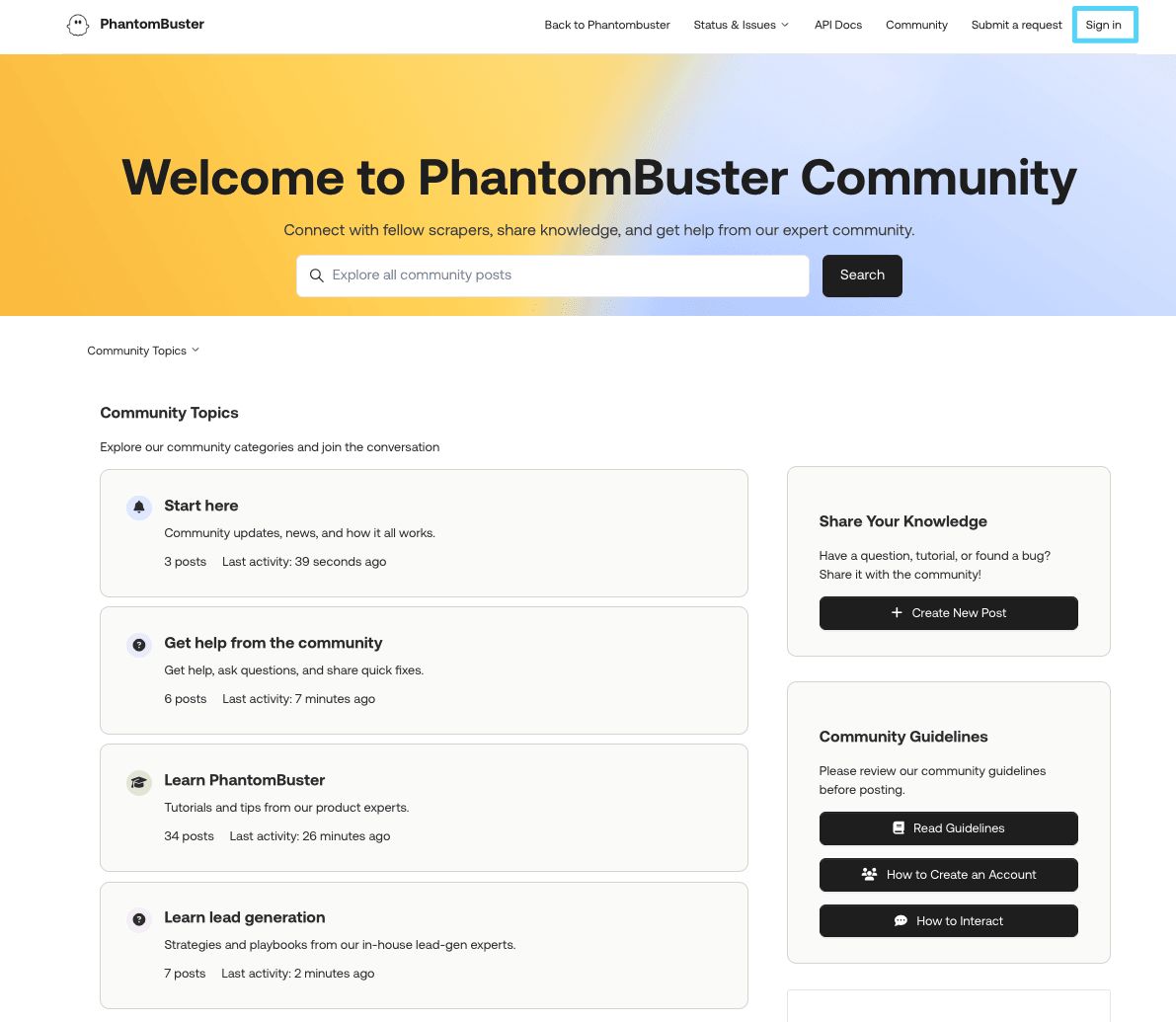
- Go to the PhantomBuster Community.
-
Click “Sign in” (top-right).
-
On the sign-in page, scroll down and choose one of these:
- If you're brand new: Click “New to PhantomBuster? Sign up.”
- If you've already raised a support ticket with us: Click “Get a password” under the sign-up options. This will activate your existing account.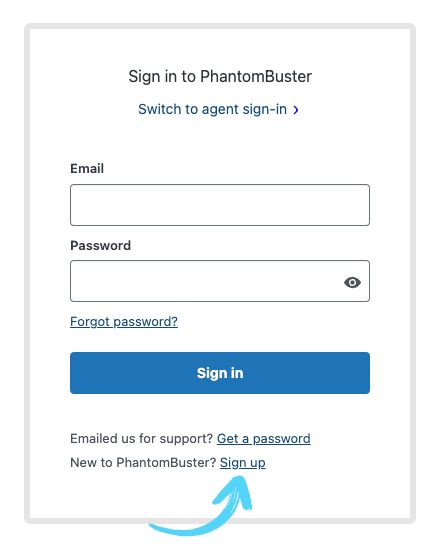
-
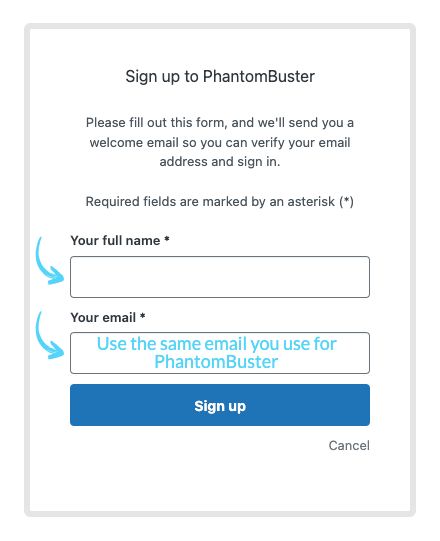
Enter your name and email address:
- Use the email you used for your PhantomBuster workspace if you have one.
- A confirmation email will be sent to this address.
- Open the verification email and follow the link to create a password.
- You’re all set! You’ll be logged in and ready to explore the PhantomBuster Community!
Once you’re signed in
Your PhantomBuster Community portal gives you access to everything you need to learn, contribute, and stay up to date, all in one place.
Here's what you can do:
-
Browse and participate in Community topics:
- Start here: Get community updates, news, and how it all works.
- Get help from the Community: Ask questions, troubleshoot issues, and share quick fixes.
- Learn PhantomBuster: Learn from tutorials, tips, and advice from our product experts.
- Learn lead generation: Explore strategies, outreach tips, and advice from our growth experts.
-
Submit and track support requests:
- Submit support requests directly from the Help Center form or Help Widget.
- If you’re signed in, your email will be filled in automatically.
-
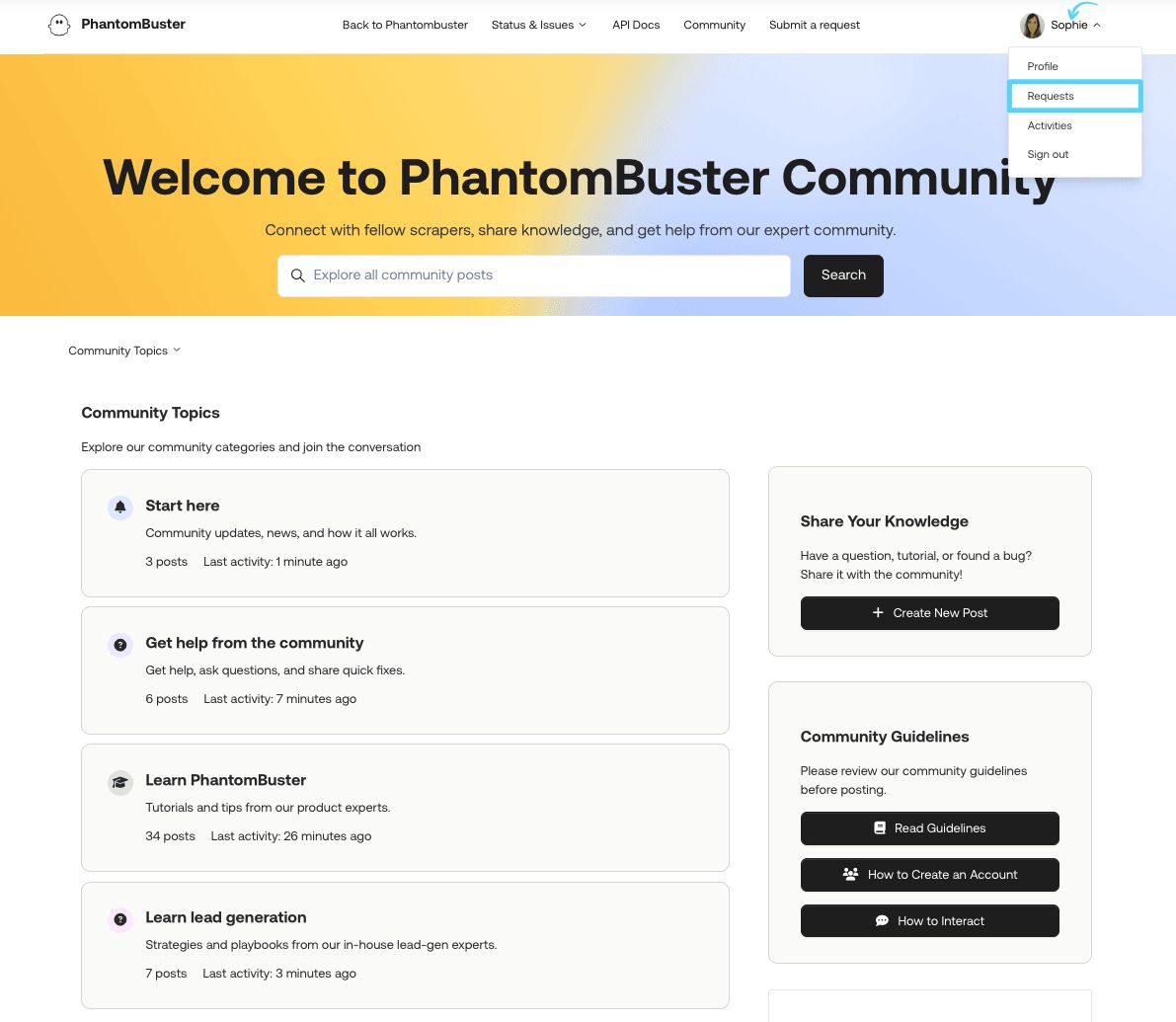
You can then track and follow up on all your open and past tickets right from your Community profile, under the Request page.
-
Update your user profile:
- Edit your name and add a profile picture.
- Comment on posts to ask follow-up questions or share additional tips.
-
Follow posts or entire topics to receive email notifications when there are replies or updates:
- Especially useful for tracking active bugs or feature conversations.
Comments
0 comments
Please sign in to leave a comment.