How to Post, Comment, and Follow Topics in the PhantomBuster Community

Ready to jump in?
Here’s how to ask questions, join discussions, and stay in the loop.
Create a post
💡 You’ll need to be signed in to create a post.
Use posts to:
- Ask a setup or troubleshooting question.
- Share a tip, use case, or feedback.
To post:
- Go to any Community page.
-
Click Create new post (or New post, depending on the page).

-
Add a descriptive title that summarizes your topic in a few words:.
Examples: “Help with LinkedIn Auto Connect error” or “Idea: Add AI sorting to lead lists”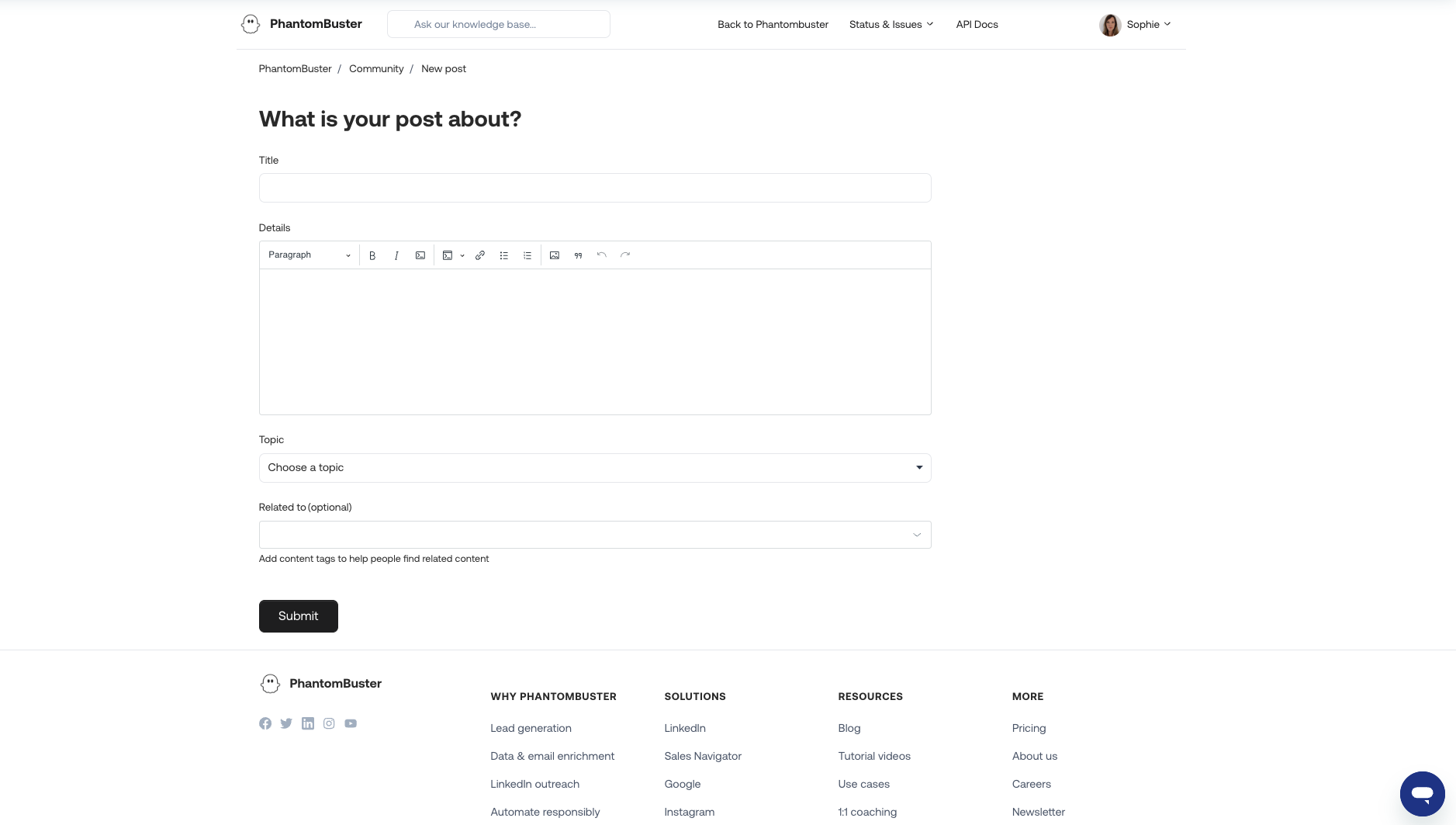
- Enter the details of your post: this could be a question, feature request, tip, or bug report.
- Use the toolbar to:
- Format your text.
- Add links or screenshots (max image size: 2MB).
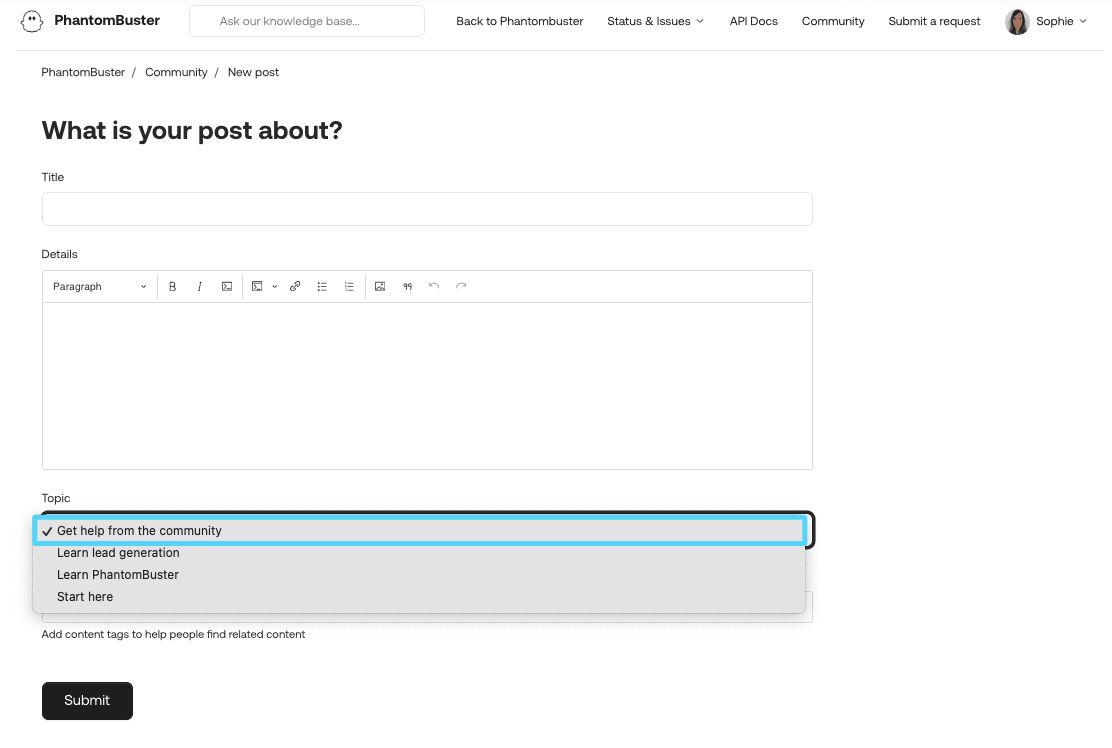
- Choose the appropriate topic:
-
Ask the community → For help, troubleshooting, or quick questions.
-
- (Optional) Use @mentions to tag other Community members:
- Type “@” followed by at least 3 letters of their name (e.g. @Nathan).
- They’ll get an email notification and will automatically follow the post.
- Click Submit.
Tip: Search first, your question might already be answered!
Comment on posts or Help Center articles
Use comments to:
- Ask follow-ups.
- Share answers.
- Leave feedback on Help Center articles.
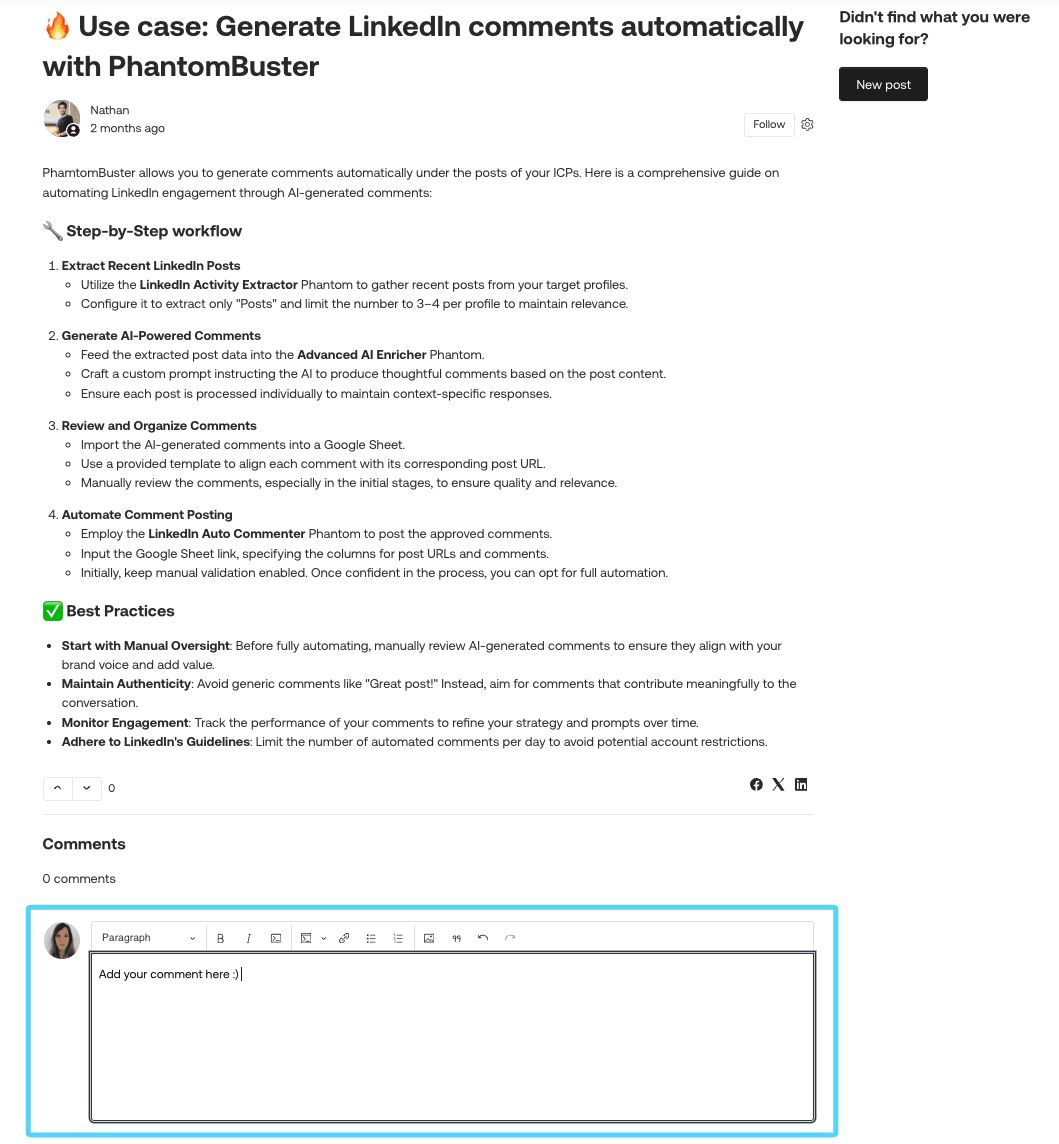
→ Scroll to the bottom and start typing. Click Submit when you’re done.
Follow posts, topics, or Help Center articles
Get notified when:
- Someone replies to a post.
- A new post is made in a topic you follow.
- A Help Center article is updated or discussed.
To follow:
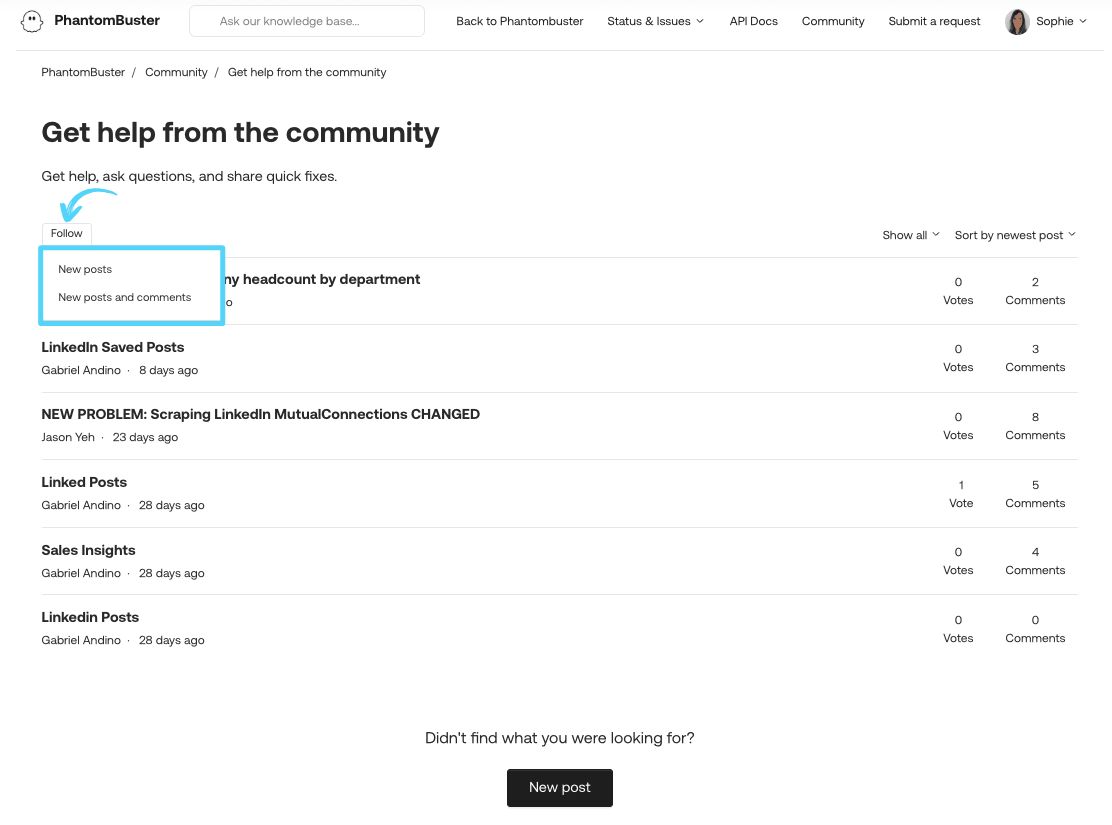
- Click Follow on a post, topic, or article
- Choose your notification preference:
- New posts only
- New posts and comments
→ Click Following again to Unfollow anytime.
View and manage your activity
To see your contributions or subscriptions:
- Click your profile icon in the top-right corner.
- Select My activities.
- From here, you can:
- View your posts, community comments, and article comments.
- Click Following to manage your subscriptions.
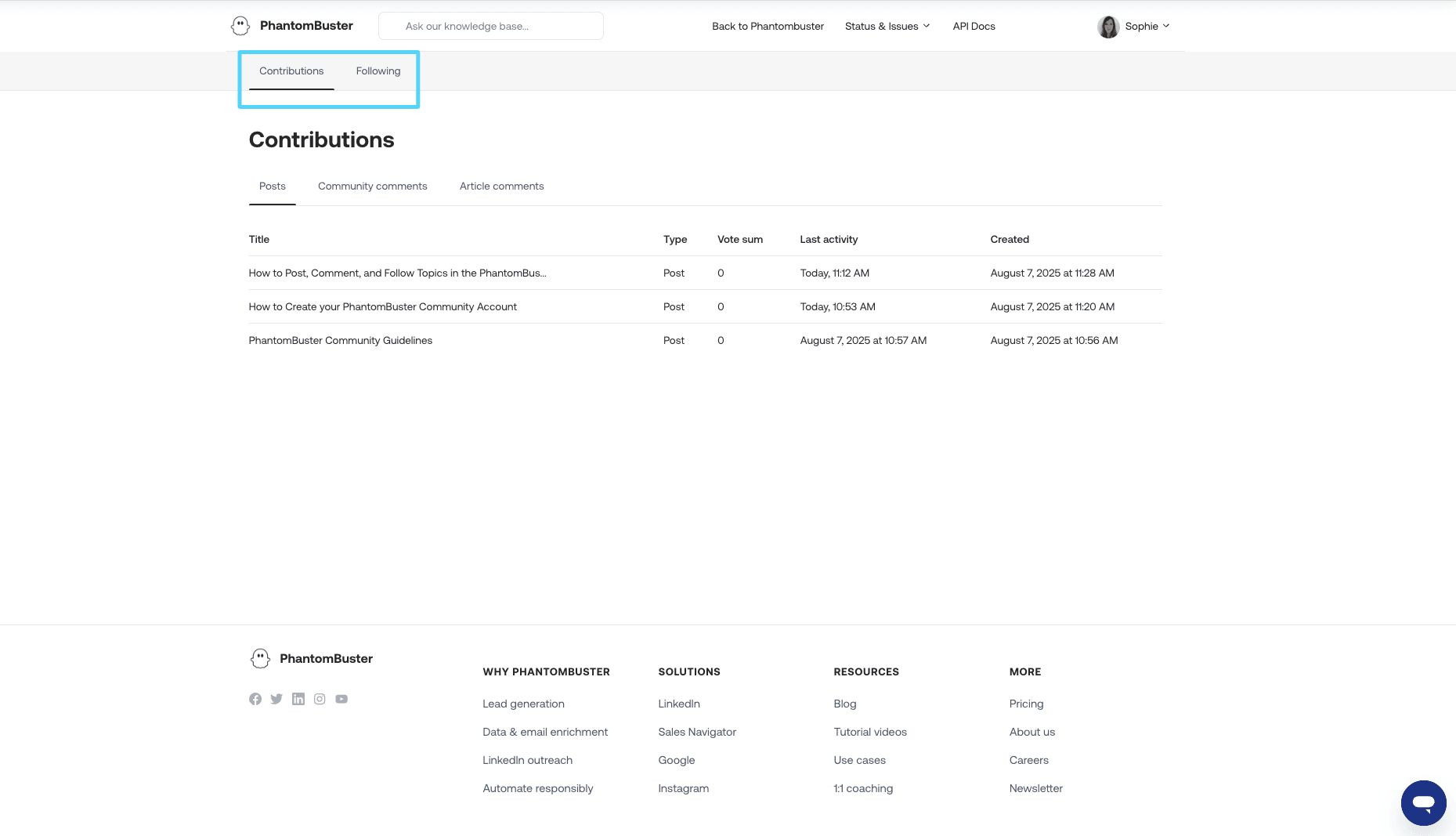
You can unsubscribe from any post or topic by clicking the Unfollow button directly in the list.
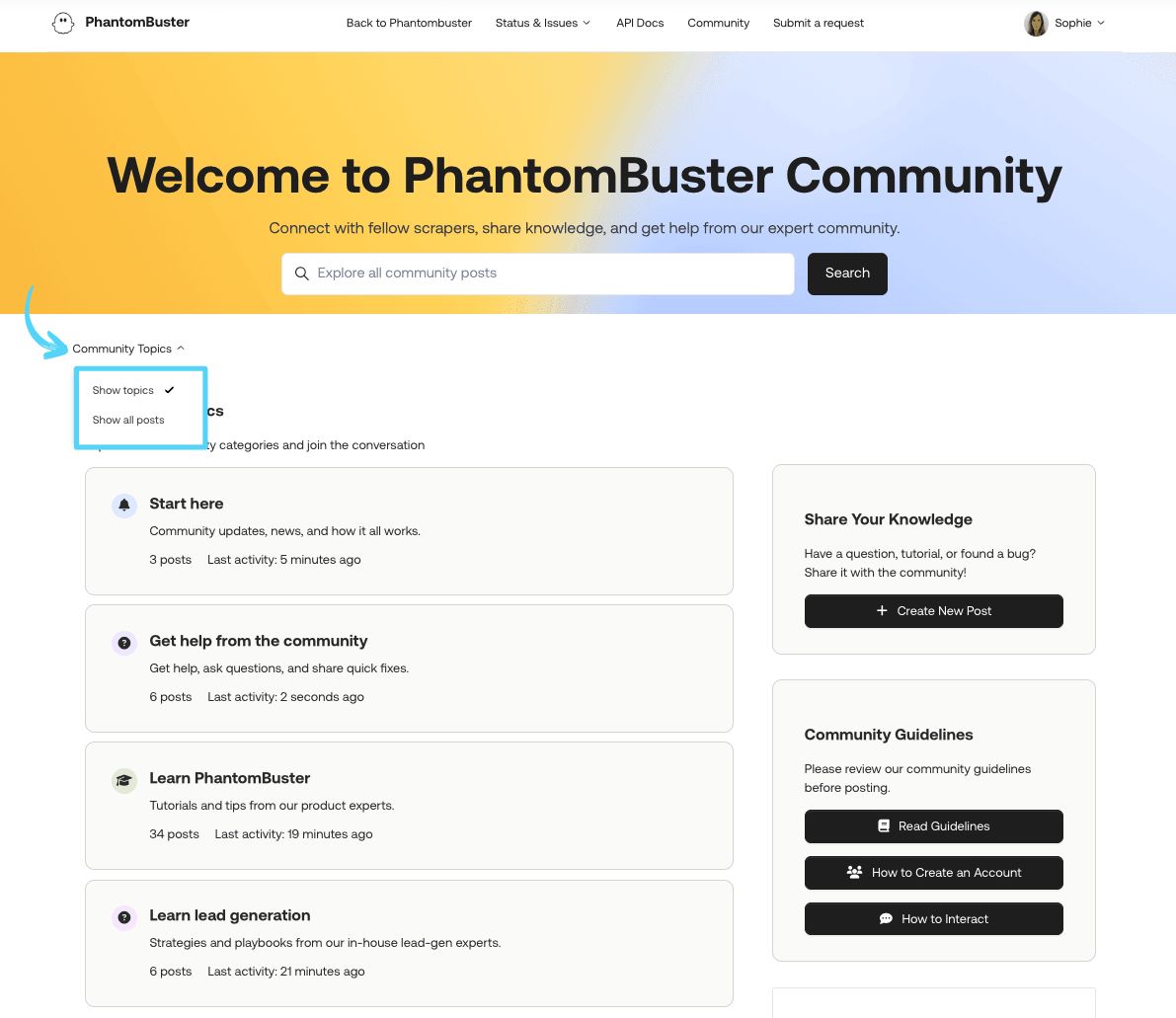
Sort or filter content in the Community
Use filters to surface what’s most relevant:
- On the homepage → Show all posts.
- Inside topics → Sort by Newest, Activity, Votes, or Comments.
- Inside a post → Sort comments by Date or Votes.
Comments
0 comments
Please sign in to leave a comment.